
01 / PHOTOGRAPHS & MEMORIES
Old photo restoration, made for family photographs
A faded print can still hold a whole afternoon: a familiar smile, a childhood kitchen, a person whose voice is easy to remember. Old photo restoration helps make those details easier to see. Start with a scan or a photograph of the original print, choose face restoration, and compare the result with the image you brought in. The tool finds faces automatically and blends restored detail back into the complete photograph.
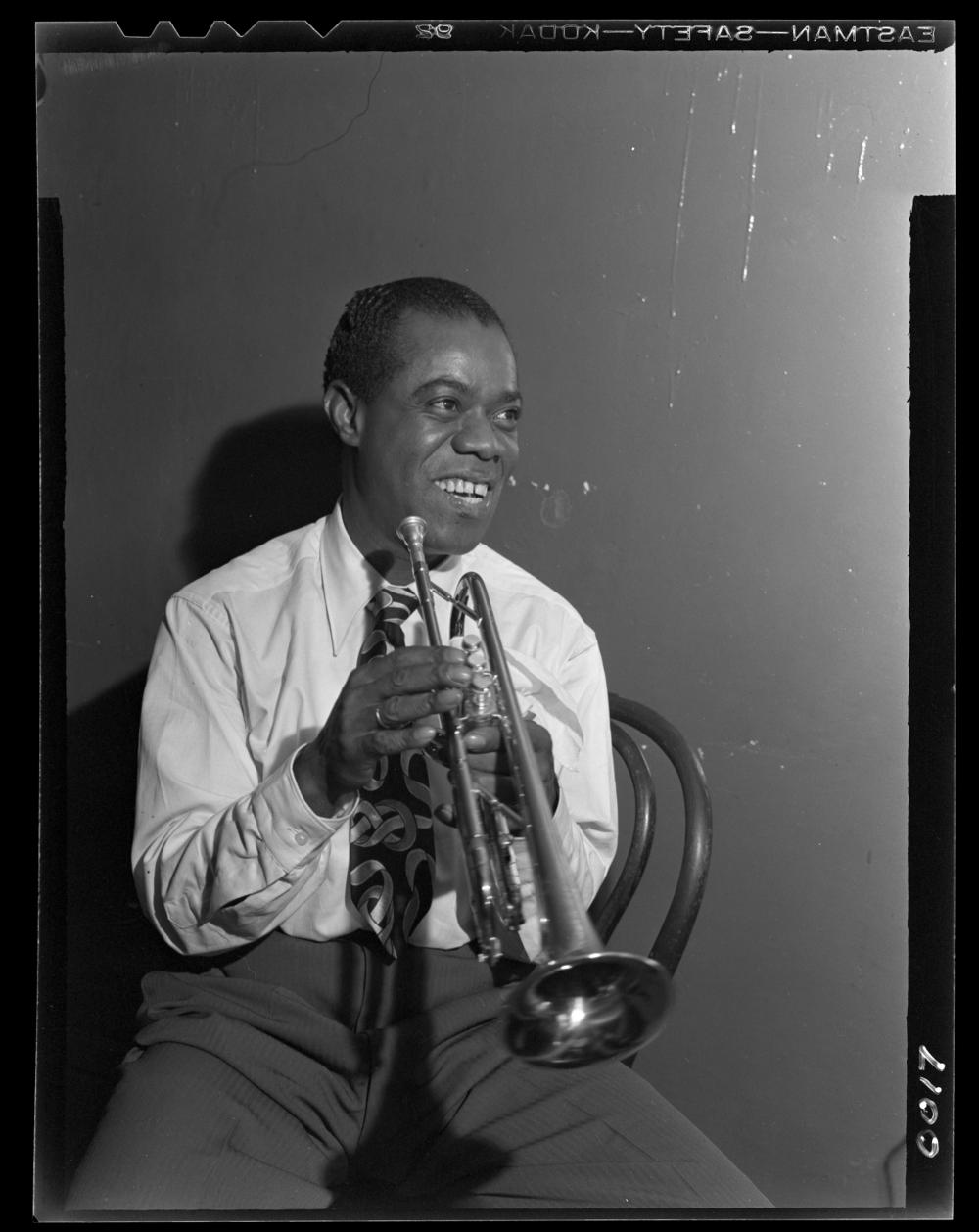
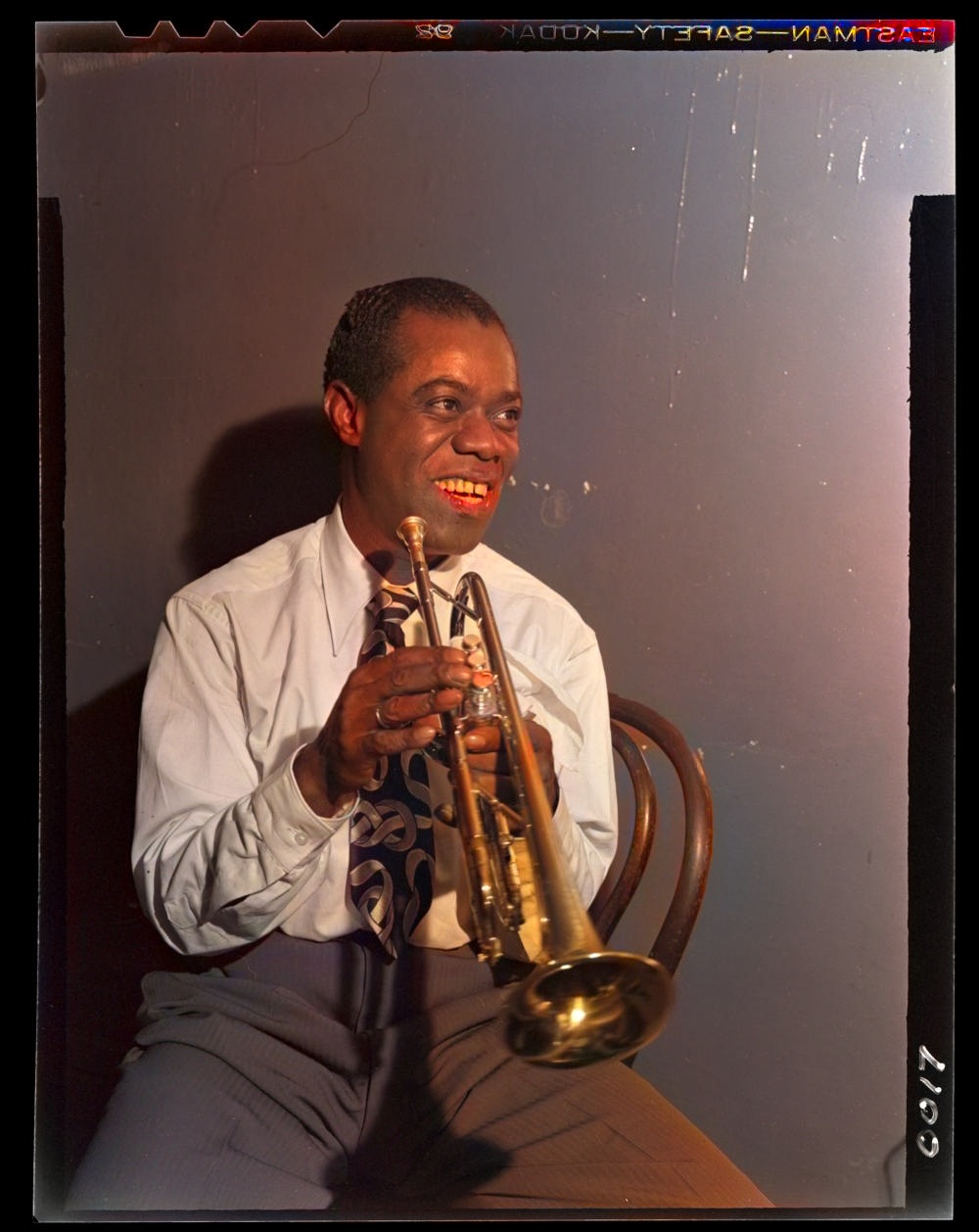
There is no account to create, subscription to start, or credit balance to watch. The same free photo tool works with portraits, family snapshots, and digitized album pages. Switch on colorization to give a black and white photograph a fresh interpretation, or keep the original tones and concentrate on clarity. The comparison slider makes each change visible before downloading a copy.
02 / PHOTOGRAPHS & MEMORIES
How to restore old photos online
Choose a JPG, PNG, or WebP from a computer or phone. A flat, evenly lit scan is a useful starting point; a careful phone photograph also works. Place the print beside a window, keep the camera parallel to the paper, and check for reflections before taking the picture. Crop away the tabletop so faces occupy more of the input image.
Leave Restore faces selected for a portrait or group photograph. The tool finds facial landmarks, aligns each face, restores detail, and blends the result back into its original position. Adjust restoration strength for a gentler or more defined finish. To colorize a monochrome image, select Add color as well. Press Restore photo, move the comparison slider, then download PNG or JPG.
03 / PHOTOGRAPHS & MEMORIES
Restore faces without losing the whole picture
Family photographs are rarely perfect headshots. People stand at different distances, a face may be slightly tilted, and the background often matters just as much as the portrait. Automatic face detection keeps the process simple: there is no need to draw a separate crop around every person. The finished image stays a complete photograph, with each restored face in place.
Restoration strength controls how strongly the generated detail is blended with the scan. Try a lower setting for an already recognizable portrait, especially around glasses, fine wrinkles, or a soft expression. A stronger setting can help when the face looks compressed or indistinct. Compare the eyes, smile, and overall expression at a comfortable viewing size, then choose the version that feels closest to the photograph.
04 / PHOTOGRAPHS & MEMORIES
Add color to black and white memories
Photo colorization is another way to explore an archive. The colorizer predicts color while keeping the light and dark structure of the source photograph. Skin, clothing, buildings, and scenery can gain a natural-looking color palette without hand-painting each region. Restoration and colorization can be used together, or as separate choices in the same tool.
An AI color result is an interpretation rather than a record of the original colors. A blue dress, green wall, or brown coat may be plausible without matching what the subject actually wore. When family members remember a particular color, keep those notes alongside the original scan. For an album project, a restored monochrome copy and a colorized copy can sit together rather than replace one another.
05 / PHOTOGRAPHS & MEMORIES
A private way to work with old family photos
Old photo restoration runs on the device displaying this page. The browser downloads the photo tools, reads the image locally, and produces the finished picture locally. Selecting a file does not send it to a remote restoration service. This is especially useful for personal albums containing relatives, home interiors, names on photograph borders, or moments that were never intended for a public gallery.
Keep the page open while processing. The first photo includes time to prepare the tools; later photos can reuse downloaded model files. A desktop with graphics acceleration usually processes faces faster, while other browsers can use the processor. Once the result appears, save the copy somewhere useful, rename it clearly, and return to another photograph when ready.
06 / PHOTOGRAPHS & MEMORIES
Build a photo restoration workflow that lasts
Begin an album project by making a clean digital master of every print. Store those scans separately from edited copies, using filenames that identify the album, approximate year, and image number. This small habit makes it easier to compare different restoration strengths later and to share the source with relatives who may recognize an unfamiliar face or location.
Use this page for general old photo restoration, the dedicated colorizer for a color-focused workflow, and the step-by-step guide for scanning and organizing a larger collection. For scratched or damaged prints, the matching guides explain how to approach the photograph in stages. Start with the most recognizable image, get comfortable with the comparison slider, and carry the same approach through the rest of the album.
THE DETAILS, SIMPLY PUT
A few common questions
Is old photo restoration free?
Yes. Restore faces, add color, compare the result, and download the photo for free. There is no sign-up, subscription, watermark, or credit purchase.
Are my photos uploaded?
No. Photo processing happens in the browser on your device. The model files are downloaded to run the tool, but the selected photograph is not uploaded for processing.
Can I restore a group photograph?
Yes. Face detection finds people within the complete image and restores up to eight detected faces in one pass. Compare the result and use the strength control to choose a finish.
Can I keep a photo black and white?
Yes. Leave Add color switched off. Face restoration keeps the photograph in its existing tones, making it useful for monochrome portraits and family archives.
What can I download?
Choose PNG for a detailed copy or JPG for a smaller file that is easy to share. The download contains the finished photograph, without the comparison slider or preview markings.
How do I get the best photo restoration result?
Start with a clear scan, crop away the surrounding table or album border, and compare a moderate restoration strength first. Save the original scan and the restored copy under different filenames.