
01 / PHOTOGRAPHS & MEMORIES
Colorize photo memories in your browser
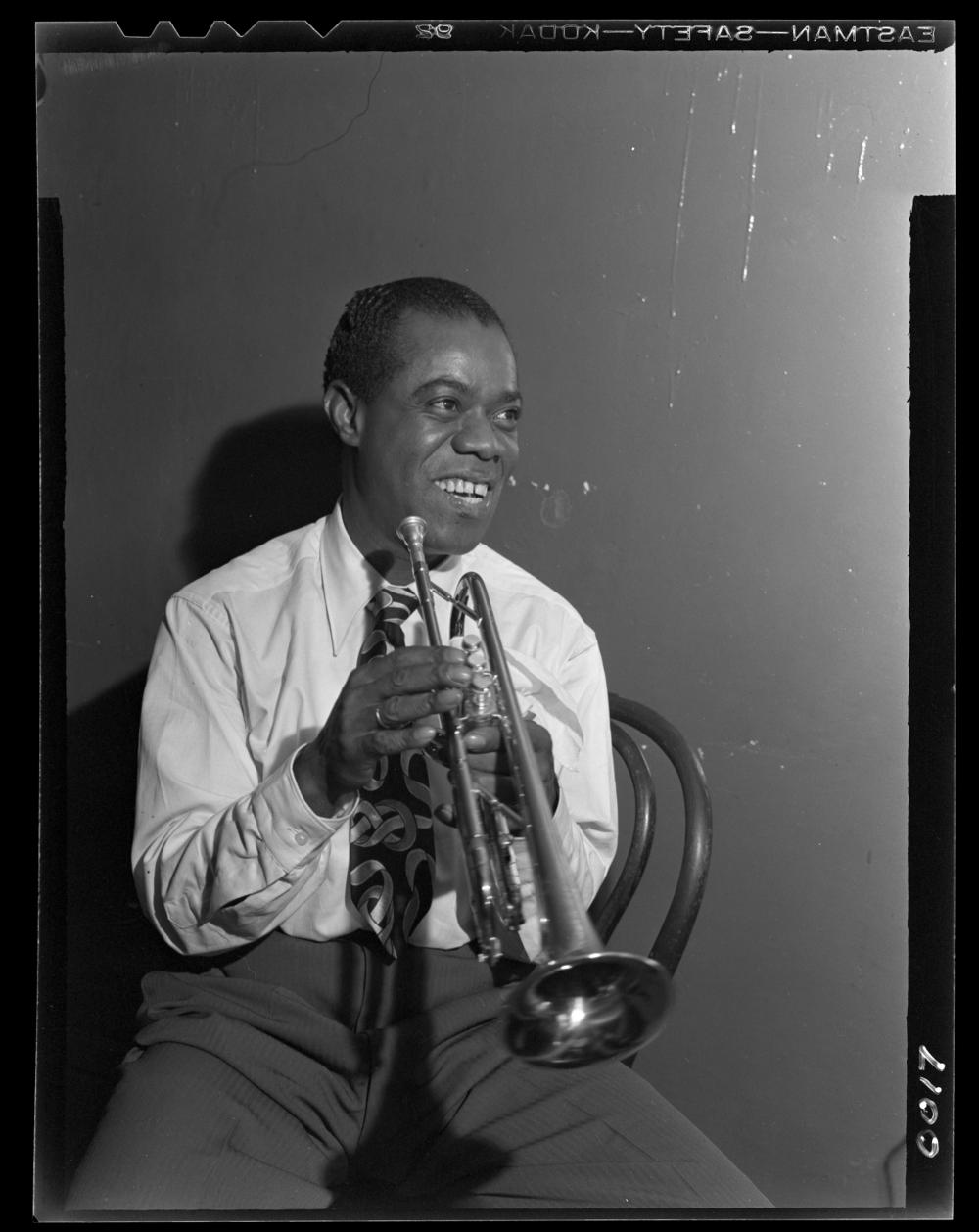
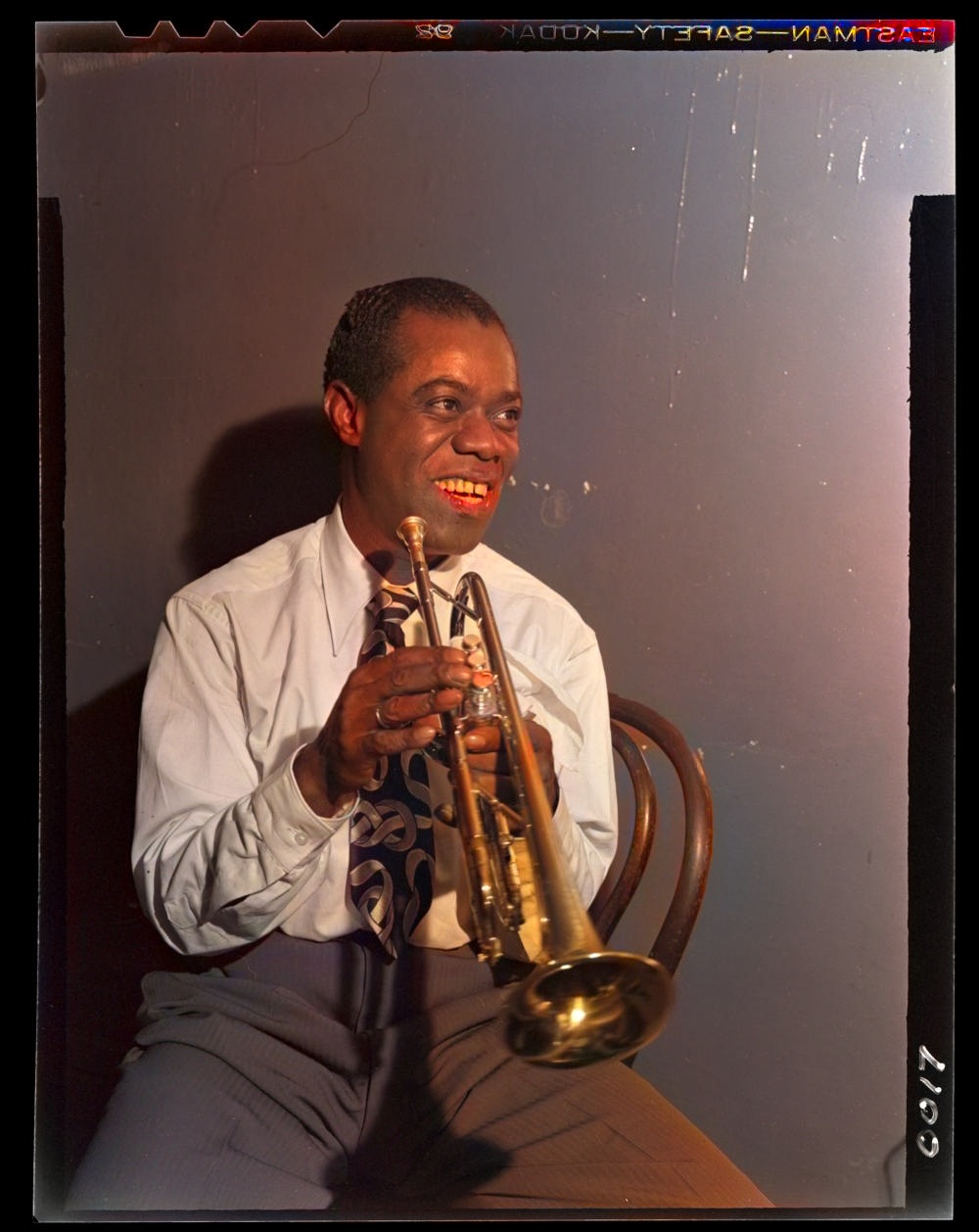
A black and white photograph leaves room for imagination. A photo colorizer fills part of that space by suggesting the colors of skin, fabric, trees, and buildings. Choose a photograph above and the browser creates a color version using the original light and dark detail. The result can make a familiar family portrait feel newly immediate without requiring painting tools or a complicated editing workspace.
This free image colorizer works directly on the page. There is no account, subscription, or upload queue. Colorize a portrait for an album, explore a street scene from a local history collection, or make an alternative version of a favorite monochrome photograph. The original stays available in the comparison so the difference is easy to judge.
02 / PHOTOGRAPHS & MEMORIES
How to colorize a photo online
Choose a JPG, PNG, or WebP image from the device. A neutral black and white scan is a good place to start. If the print has a warm paper tint, crop away most of the border and use an evenly lit capture. Check that the image is upright and that important parts of the scene have not been cut away.
Add color is selected on this page. Leave it selected, optionally add face restoration for a portrait, and start the process. The first image takes extra time while the tools become ready. When the colorized photo appears, drag the comparison slider across faces, clothing, and scenery. Download a PNG for keeping or a JPG for sharing.
03 / PHOTOGRAPHS & MEMORIES
How an AI photo colorizer chooses colors
AI colorization draws on learned visual patterns. The model looks at the structure of an image and predicts color relationships that fit the scene: skin tones against a face, foliage around a tree, or different materials within a room. The source photograph supplies the brightness information, helping the colorized version retain the shadows and texture that gave the original its character.
The model does not have access to a historical color record of the scene. A convincing color palette is not proof that the original objects had those colors. Think of the image colorizer as a way to explore an interpretation. For a family album, keeping both versions together gives viewers the original record and the added color experience.
04 / PHOTOGRAPHS & MEMORIES
Colorize portraits, landscapes, and everyday scenes
Portraits are a natural starting point because faces give the colorizer recognizable structure. A well-scanned face, clear clothing, and separated background tones give the image useful visual cues. For a faded portrait, try face restoration and colorization together, then compare the expression and the color finish before deciding which copy to save.
Landscape photographs and street scenes can also gain a fresh sense of place. Trees, sky, brick, pavement, and water often have different tonal patterns that help separate regions. Interiors can be more ambiguous, especially when several objects share similar gray values. Look across the whole picture rather than judging a single tiny patch, and keep the interpretation that makes the scene easiest to appreciate.
05 / PHOTOGRAPHS & MEMORIES
Prepare a better black and white source
Colorization works with the information in the input. Start with a scan large enough to show useful texture rather than a small screenshot that has been repeatedly resized. If a family member sends the photo through a messaging app, ask for the original file when available. A clearer source gives the colorizer more structure to interpret around eyes, hair, patterned fabric, and fine architecture.
For a phone capture, turn off flash, keep the camera parallel to the print, and use soft light. Crop away the desk and any unrelated photographs on the album page. Avoid heavy contrast filters before colorization; crushed shadows can merge objects that should remain separate. A balanced scan gives the model more room to distinguish the scene.
06 / PHOTOGRAPHS & MEMORIES
Keep, share, and organize colorized photographs
After using the colorize photo tool, save a separate copy with a useful name such as album-03-color. Keep the black and white master beside it and record any known names, dates, and locations in a simple accompanying note. These details often add more value to a family archive than a perfect file naming system.
Use PNG when keeping a colorized result for later editing. Use JPG when a smaller image is more convenient for a message, email, or digital frame. For a complete restoration workflow, return to the main tool or follow the scanning guide. For specifically monochrome collections, the black and white photo page explains how color choices interact with print tone, faded paper, and portrait detail.
THE DETAILS, SIMPLY PUT
A few common questions
Can I colorize photo files for free?
Yes. The photo colorizer is free to use and the result can be downloaded without an account, watermark, or credit purchase.
Does the image colorizer upload photographs?
No. The colorizer runs locally in the browser. The browser downloads the tools, then processes the selected image on the device.
Are the predicted colors historically exact?
The colors are AI interpretations. They can look natural without matching the actual colors of clothes, buildings, or objects in the original scene. Keep the source photograph as the reference.
Can I restore a face while adding color?
Yes. Select Restore faces along with Add color. The tool restores facial detail before colorizing the complete photograph.
What image formats can I colorize?
Choose a JPG, PNG, or WebP. For a scanned TIFF or a phone HEIC, export a JPG or PNG from the photo application first.
Will the colorizer remove the original detail?
The color workflow keeps the source lightness and adds predicted color channels. Compare the result with the source using the slider before downloading a copy.